Search for answers or browse our knowledge base.
Can't find the answer you need here? Contact our support team and we'll gladly help you.
Creating ProSelect albums and importing orders
Light Blue’s integration with ProSelect allows to you to easily create or update ProSelect albums with information from Light Blue, as well as import orders from ProSelect as sales so that you can keep all of your financial information in Light Blue and make the most of our powerful reporting features.
Setting up the integration
Light Blue automatically detects whether ProSelect is installed on the same Mac or Windows PC and will show “Create ProSelect Album” and “Import ProSelect Orders” buttons on your shoots.
You can override this automatic detection of ProSelect by going into the Preferences window, then into the Integrations section, selecting the “In-Person Sales” tab, and changing the “Show ProSelect Buttons On Shoots” setting.
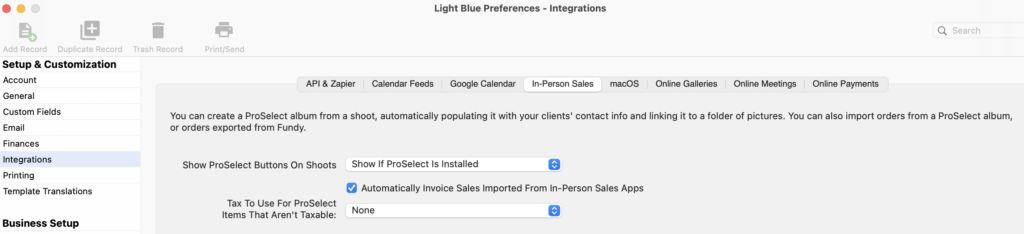
On this tab, you can also tell Light Blue whether you want to automatically invoice sales imported from ProSelect and which tax to apply to ProSelect order items that are marked as not taxed.
Creating a ProSelect album
From any shoot in Light Blue, you can click the “Create ProSelect Album” button to create or update a ProSelect album.
Clicking the “Create ProSelect Album” button shows a window that allows you to choose which contacts from the shoot will be added to the ProSelect album. You can include multiple clients in a ProSelect album, each of which can place their own order. Using the contacts from Light Blue saves you from having to reenter those clients’ details in ProSelect, saving time and avoiding typos.
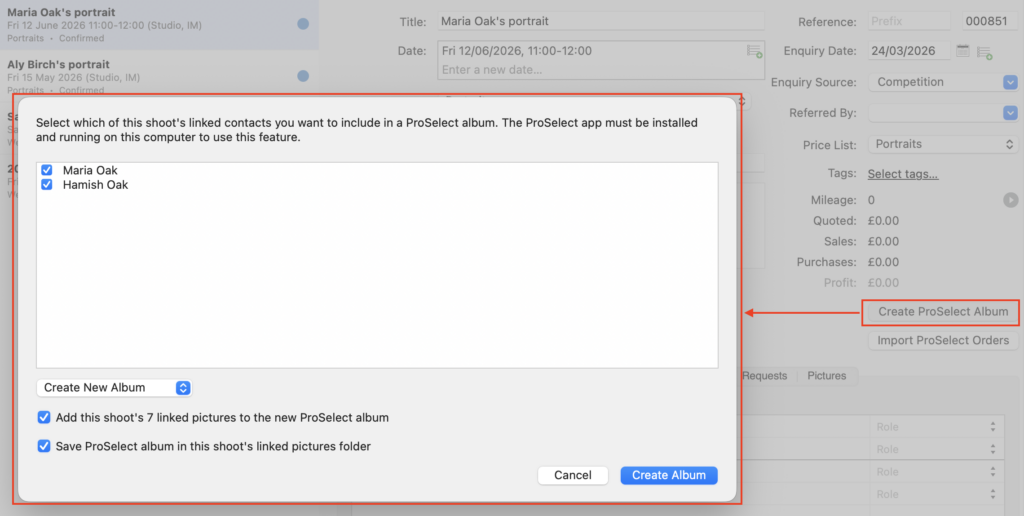
Light Blue defaults to creating a new ProSelect album, but you can change the “Create New Album” setting to “Update Open Album” instead to update an album that’s currently open in ProSelect.
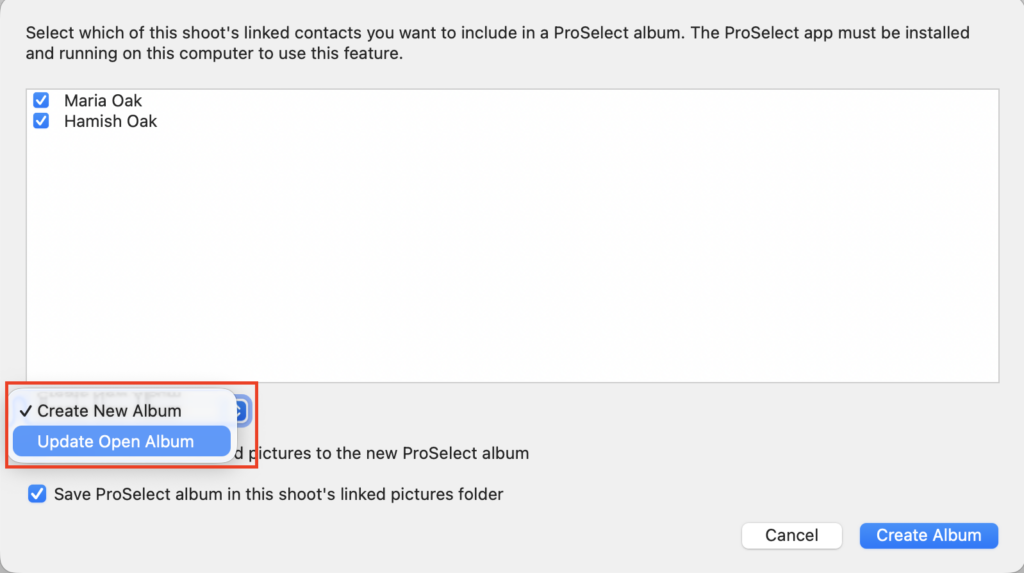
For example:
- You might have created a ProSelect album from Adobe Lightroom. You can use the “Update Open Album” option to add client details to that album from Light Blue.
- If you need to correct a client’s name or contact information, you can do that in Light Blue and then use “Update Open Album” to update that client in your ProSelect album.
Adding pictures to a ProSelect album
A shoot can be linked to a folder of pictures, and you can add your shoot’s pictures to the ProSelect album that you’re working with. To do this, tick the “Add this shoot’s linked pictures to the ProSelect album” checkbox.
If the shoot has been linked to a folder of pictures, you can automatically save the new ProSelect album to that folder to keep all of the assets for that shoot in one place. To do that, tick the “Save ProSelect album in this shoot’s linked pictures folder” checkbox.
Importing orders from ProSelect
Our ProSelect integration makes it easy to import orders from the open ProSelect album into Light Blue as sales. Clicking the “Import ProSelect Orders” button from a shoot in Light Blue will create new sales in Light Blue and link them to that shoot.
You can import orders into Light Blue from any ProSelect album: you don’t have to create the ProSelect album from Light Blue to be able to import orders from it.
When you import orders from ProSelect, Light Blue will create one sale per ProSelect order and link those sales to the shoot that you clicked the “Import ProSelect Orders” button on. It will also attempt to link that order’s client to a contact in Light Blue.
You can tell Light Blue to automatically invoice sales imported from ProSelect by ticking the “Automatically Invoice Sales Imported From In-Person Sales Apps” setting. You can edit this setting by going into the Preferences window, then into the Integrations section, selecting the “In-Person Sales” tab.