Search for answers or browse our knowledge base.
Can't find the answer you need here? Contact our support team and we'll gladly help you.
How to change your account username
Your account username is the email address you used to sign up for your Light Blue account, and the email address you use to log into your account page on our website.
Note: This can be different from the email address you use to send emails to clients from within Light Blue.
Step 1: Change Your Username Via Your Account Page
Log into your account page on our website using your existing username and password.
Once logged in, either:
- Click Account Details in the Apps & Account menu, or
- Click the green Update button in the Your Info section.
Update your account email address, then save your changes.
Step 2: Update the Username in All Light Blue Apps
After changing your account username online, you must update it in every Light Blue app you use.
Any device that still has your old username entered will no longer sync with your account until it’s updated.
Updating the Username in the Light Blue desktop app
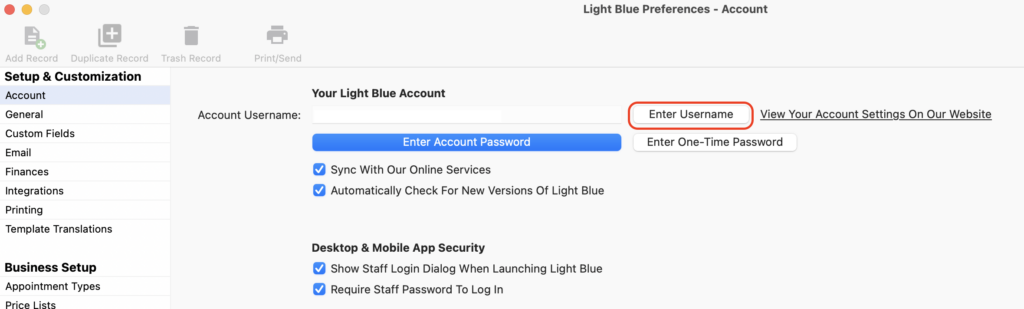
- Open Light Blue.
- Go to Preferences.
- Open the Account preferences section.
- Click Enter Username.
- Enter your new account email address.
Light Blue should now reconnect and sync successfully.
Updating the Username in the Light Blue mobile app
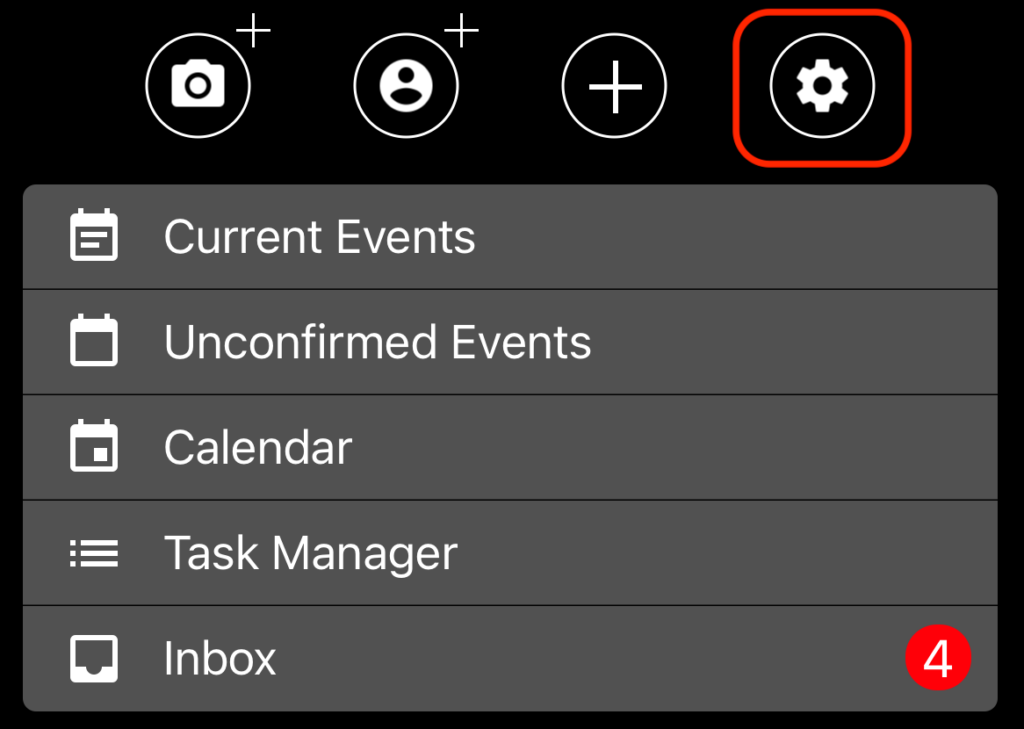
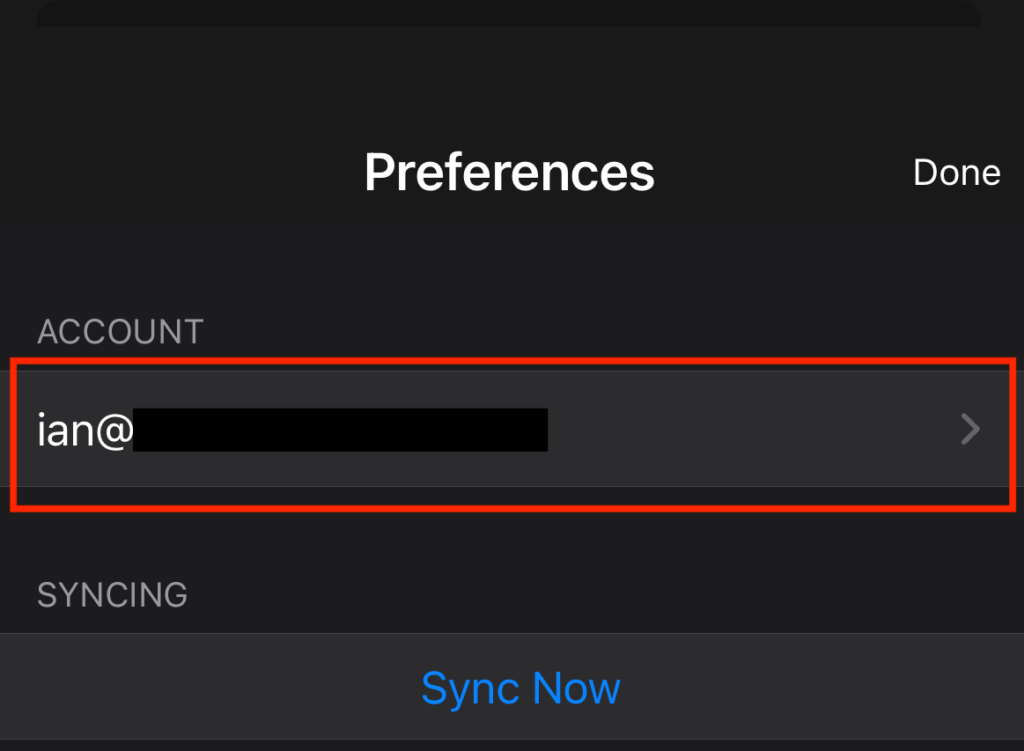
- Open the Light Blue mobile app.
- Tap the options cog in the top-right corner of the home screen.
- Tap the email address shown in the Account section.
- Enter your new account email address and your account password.
The app should now reconnect to your account successfully.